
Updates
WinUtil provides three update modes so you can choose how aggressively Windows Update is managed on your system:
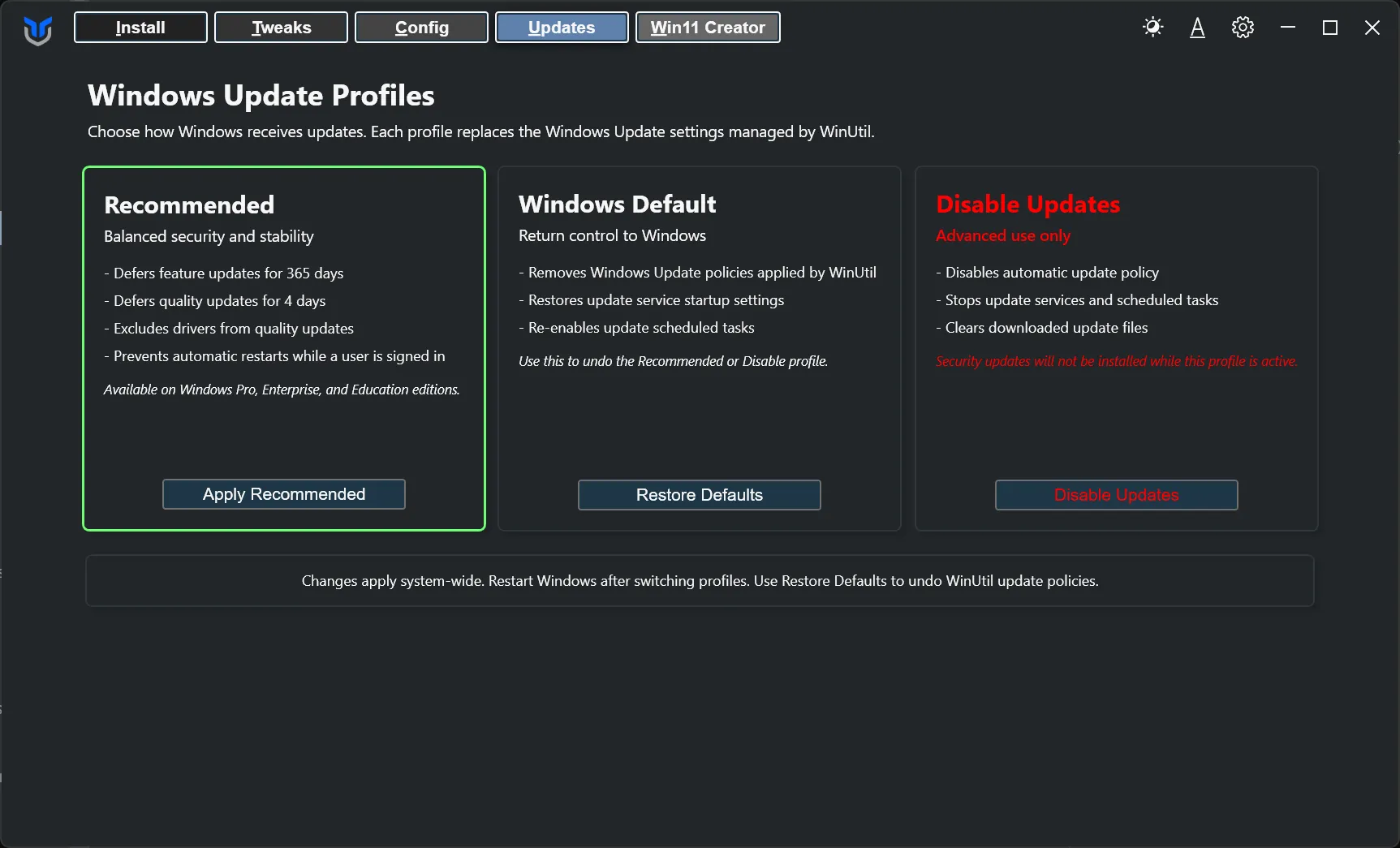
Changing modes adjusts system-wide Windows Update behavior. After switching modes, give Windows a moment to apply the policy and plan for a restart if the new state does not appear immediately.
- Recommended: Prioritizes stability while still receiving security updates
- Windows Default: Restores standard Windows Update behavior
- Disable Updates: Blocks Windows Update and should only be used with extreme caution
Windows Default
Section titled “Windows Default”- What it does: Removes Windows Update policies managed by WinUtil, restores update service startup settings, and re-enables update scheduled tasks.
- Best for: Systems where you want Windows to manage updates normally.
- Notes: Only values managed by WinUtil are removed; other Windows Update policies are left in place. If update errors continue, use the reset option in the Config tab to repair Microsoft Update components.
Recommended
Section titled “Recommended”- What it does: Applies a more conservative update strategy designed for most users.
- Feature updates: Delayed by 365 days to reduce the chance of disruption from major Windows changes.
- Quality updates: Delayed by 4 days to allow time for early issues to surface while still keeping the system protected.
- Drivers: Excluded from Windows quality updates.
- Installation: Updates download automatically and notify you when they are ready to install. This setting does not control restarts after installation.
- Availability: Update deferral policies apply to Windows Pro, Enterprise, and Education editions.
- Why use it: This mode offers the best balance between security and stability, which is why it is the recommended option for most PCs.
Disable Updates (NOT RECOMMENDED!)
Section titled “Disable Updates (NOT RECOMMENDED!)”- What it does: Disables automatic update policy, stops and disables update services, disables update scheduled tasks, and clears downloaded update files.
- Best for: Highly controlled or special-purpose systems where updates must remain off temporarily.
- Warning: This leaves the system without security patches and significantly increases security risk.
- Notes: Windows servicing can restore update components in some circumstances. Use Restore Defaults when you are ready to receive updates again.
- Recommendation: Avoid this mode unless you fully understand the tradeoffs and have a specific reason to use it.